
ChatGPT can write an email in seconds. But a fast draft is not the same as a good one.
The difference comes down to context. When ChatGPT knows nothing about your audience, your voice, or your past emails, what it produces sounds like everyone else’s emails. Generic. Forgettable. Easy to delete.
What actually works is using ChatGPT as a thinking partner, not a ghostwriter. And when you connect it directly to AWeber, you give it something most people never give an AI: real information about your actual subscribers.
Here is how to use the two together to write emails that sound like you and perform better for it.
The context problem most people run into
ChatGPT is good at structure. Give it a topic and a goal, and it will produce a readable draft fast. It can suggest subject lines, sharpen your opening sentence, and help you think through a call to action.
What it cannot do on its own is write in your voice. It does not know that your subscribers respond better to short emails. It does not know which subject line styles have gotten you more opens. It does not know what you sent three weeks ago or what your audience actually cares about.
So most people hand ChatGPT a blank prompt and get a generic email back. Chris Vasquez, AWeber’s Chief Product Officer and owner of Dinki, a pickleball paddle company, describes it this way: “Think about it like giving a project brief to a copywriter for the first time that’s never worked with you and knows nothing about what you want or your business or your offer.” A copywriter in that position will write something. It just won’t be good.
The fix is context. The more you give ChatGPT upfront, the better the output.
Build a brand voice document from your existing emails
Before you ask ChatGPT to write anything, have it study how you already write.
The fastest way to give ChatGPT real context is to connect it directly to an AWeber account. AWeber has an official app in the ChatGPT marketplace. Connect in one click, on any ChatGPT plan including free, and ChatGPT can pull from your actual email data inside the chat.
Use this prompt:
“Look at my last 20 emails on my [list name] list. Analyze my tone, sentence length, how I open emails, how I close them, and how I structure CTAs. Then write a comprehensive brand voice document I can use to prompt you going forward.”
ChatGPT reads your actual sent emails and produces a guide that reflects your real voice, not a generic one. Save that output. Paste it at the start of any future chat where you want it to write in your style.
Chris Vasquez built a voice guide from scratch in under five minutes. As Chris puts it: “You can come at it with nothing and walk away with a working copywriter that understands your brand voice, that you can then refine and continue to train on your content as you’re producing it.”
Instead of describing your audience and voice manually, ChatGPT can see your real broadcast history and use that as the foundation for what it writes next. One AWeber customer with 35,000 subscribers used this to pull the top-performing subject line words and best send times across 90 days. Those two insights changed how they write and schedule email.
Related: See how to draft, send, and analyze email performance, all from ChatGPT
Why this works
Most people write emails, then hope they perform. The AWeber app in ChatGPT does the opposite.
ChatGPT looks at your top campaigns (highest opens, most clicks) and uses those patterns for new emails. You get emails that sound like you and match what your audience responds to. Written in minutes, not hours.
How to use ChatGPT to write emails
1. Tell ChatGPT what you need
Be specific. The clearer your prompt, the better your draft.
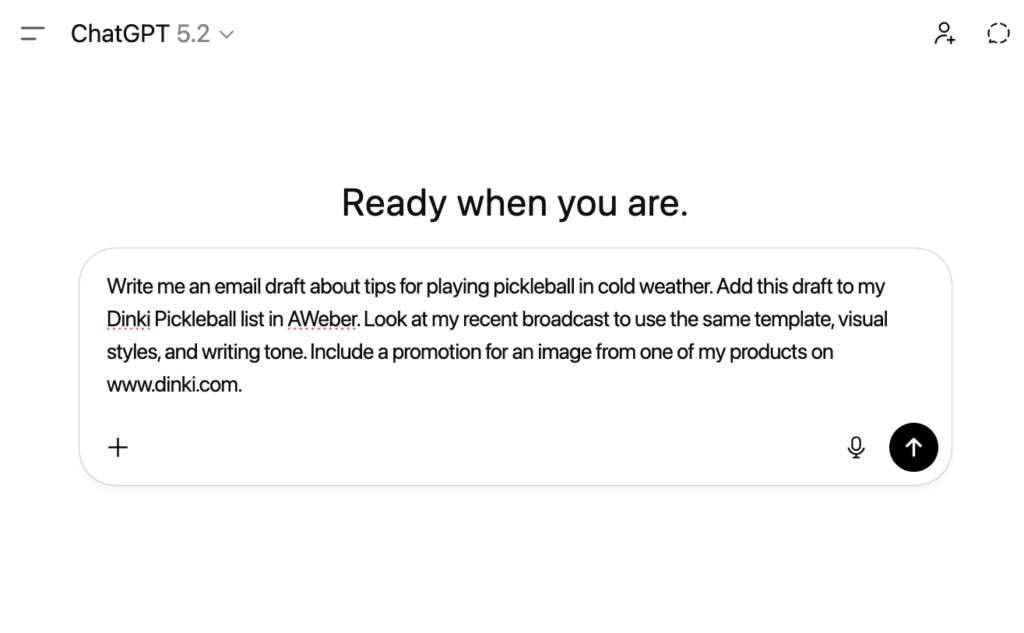
Try this prompt: “Write an email about [topic]. Use patterns from my best emails. Add it to [list name]. Use my standard template. Add an image from [URL] below paragraph two.“
ChatGPT writes the email, applies your template, places your image, and saves it to AWeber.
Related: Check out this email prompt library.
2. Review in your email
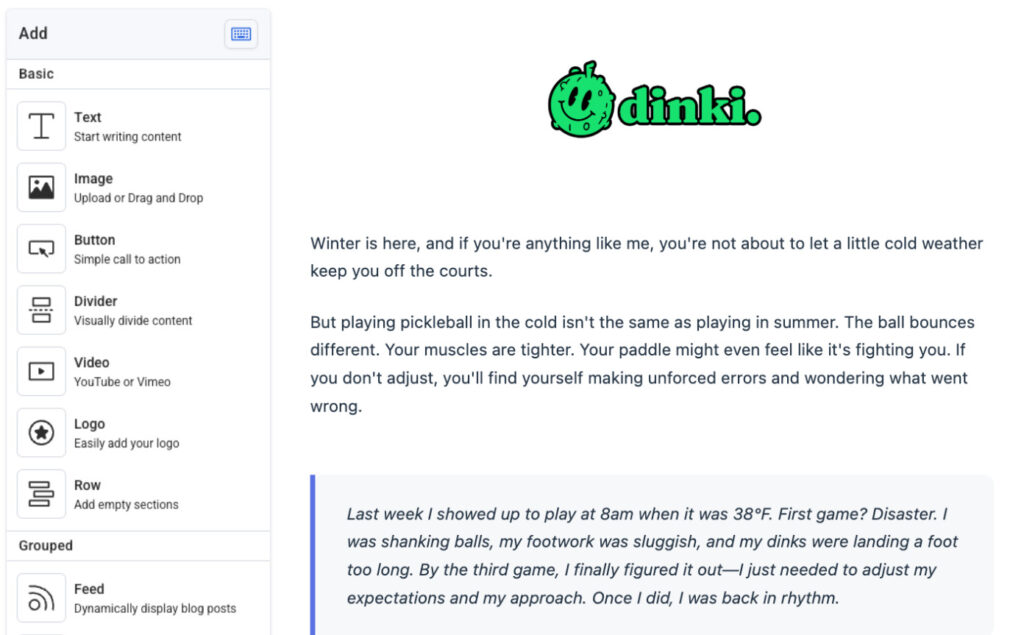
Your draft is waiting in your AWeber account.
The subject line, copy, and format mirror your best performers. Tighten a sentence. Adjust your CTA. Swap an image if needed.
3. Send your email that’s built to perform
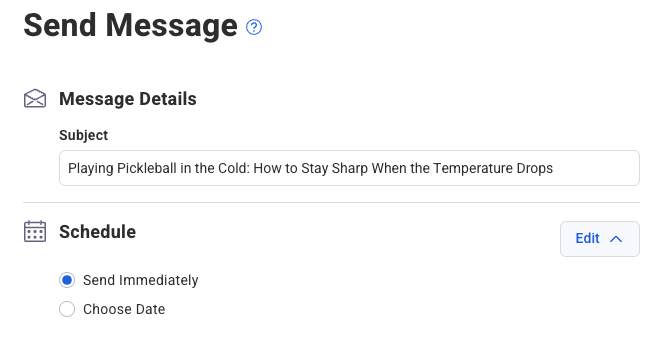
Click Schedule or Send Now.
That is it. What may have taken you hours previously, can now take you 5 minutes from concept to writing to sending.
Plus, you just sent an email built on patterns that already work for you.
Can ChatGPT Send Emails Directly?
No. ChatGPT creates drafts that save to AWeber. You review and send from there, keeping control of timing, lists, and final approval.
You get AI speed with human oversight.
5 ways to get better results
1. Learn from your existing performance. Ask ChatGPT which subject line styles got more opens, which email lengths got more clicks, which send times performed best. Then ask it to use those patterns in the next draft. You’re working from data you already have.
2. Match your tone, don’t describe it. Instead of explaining your voice, show it. “Look at my last 10 emails and write a new one about [topic] using the same tone.” ChatGPT reads your actual emails and writes from them.
3. Iterate in the same chat. First draft off? Fix it without starting over. “Make the intro shorter.” “Add a testimonial after paragraph two.” “Soften the CTA.” ChatGPT updates and saves each version back to AWeber.
4. Use consistent templates. If you have a standard layout, tell ChatGPT to apply it. Your emails stay visually consistent.
5. Pull subject lines from your top performers. Ask ChatGPT for options based on the emails with your highest open rates.
What You Get
No more blank screen. ChatGPT drafts emails using patterns that work. You review, adjust, send.
Your newsletter takes less time. Your launch sequences require less writing. The emails still sound like you.
Start writing emails with ChatGPT
AWeber turns ChatGPT into your email assistant. One that learns from your campaigns and creates drafts that perform.
Get the AWeber App from the ChatGPT Marketplace.
Frequently asked questions
Can I use ChatGPT to write my emails?
Yes, ChatGPT can write email drafts quickly, but the quality depends on how much context you give it. The more specific your prompt, the better the output.
Why do ChatGPT-generated emails often sound generic?
ChatGPT has no knowledge of your audience, voice, or past emails by default, so it produces drafts that could belong to anyone. Giving it real context, like your actual sent emails, is what makes the difference.
How does connecting AWeber to ChatGPT improve email writing?
AWeber has an official app in the ChatGPT marketplace that lets ChatGPT pull from your real broadcast history. This means it can write new emails based on patterns from your top-performing campaigns, not guesswork.
How do I get ChatGPT to match my writing tone?
Instead of describing your voice, show it. Prompt ChatGPT to look at your last 10 emails and write a new one using the same tone, so it works from your actual writing rather than a description of it.
How can ChatGPT help improve my subject lines?
You can ask ChatGPT to analyze which subject line styles from your past emails got the most opens, then have it generate new options based on those patterns for your next campaign.

The post How to Use ChatGPT to Write Better Emails (Without Copy-Pasting) appeared first on AWeber.
Article source: https://blog.aweber.com/learn/how-to-use-chatgpt-to-write-better-emails.htm