

Your subject line determines whether subscribers open your email or scroll past it. You can write brilliant content and design a beautiful email. But if your subject line doesn’t grab attention, none of that matters.
Why Subject Lines Matter More Than You Think
Most subscribers decide whether to open an email in under three seconds. They’re scanning dozens of subject lines, looking for something that feels relevant right now.
A strong subject line does two things: it grabs attention and sets accurate expectations. You’re not trying to trick anyone into opening—you’re showing them why this email matters to them.
The challenge? Writing subject lines that work takes practice. You need to balance clarity with curiosity, length with impact, and personality with professionalism.
Subject Line Assistant: Your Built-In Writing Partner
AWeber’s Subject Line Assistant generates multiple subject line options based on your actual email content.
Here’s how it works: You write your email first. Then the Assistant analyzes your content and creates several variations – each using a different proven approach like urgency, curiosity, benefits, or questions.
Every suggestion follows email best practices automatically: mobile-friendly length, strategic formatting, effective emoji use.

Using the Tool
Start by writing your email content. When you’re ready, select “Insert Your Subject Line” and click “Get Suggestions.”
The Assistant creates multiple options instantly. Review them, pick the one that fits your voice, and send.
Customize for Your Audience
Not every email needs the same tone. A flash sale requires urgency. A weekly newsletter works better with a friendly, conversational approach.
Adjust the tone (friendly, professional, urgent, inspirational) and style (informational, newsletter, promotional, educational) to match what you’re sending.
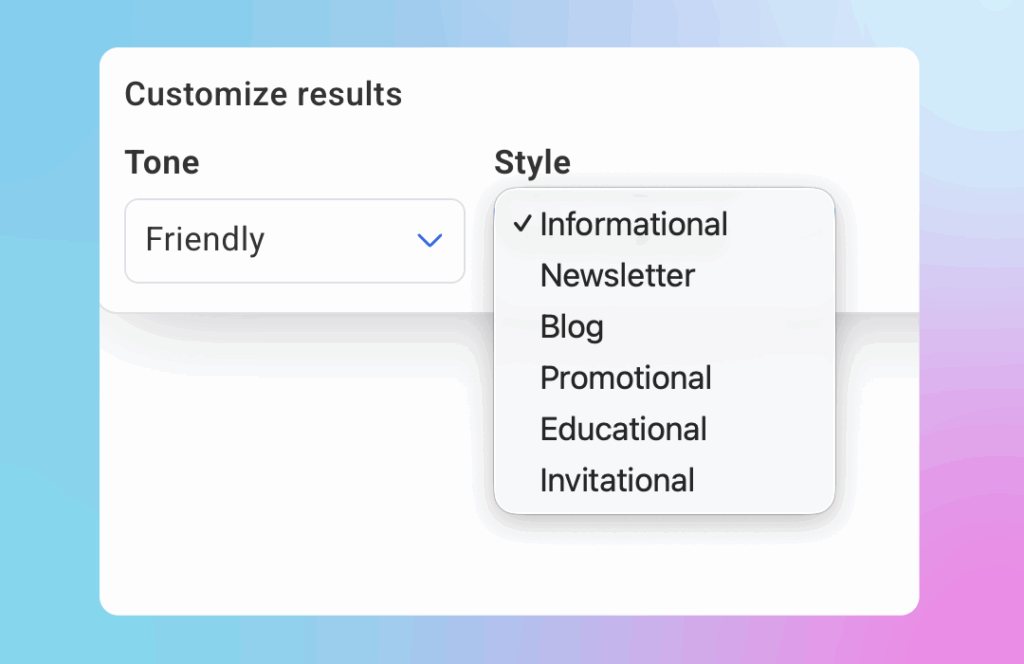
The tool adapts to your needs—you stay in control of your voice.
Built-In Quality Checks
Each subject line includes a best practices evaluation: character count for mobile, punctuation effectiveness, and how well it pairs with preview text.

Generate Preview Text Too
The Subject Line Assistant also generate preview text. Your preview text appears next to your subject line in inboxes. It’s your second chance to grab attention.
Use the Assistant to create preview text that works with your subject line. Both elements work together to show subscribers your email’s value before they open.

Try It This Week
Next time you’re writing an email, open the Subject Line Assistant. Generate a few options. Pick the one that feels right, or A/B test it against what you would’ve written.
The tool is already in your AWeber account. Look for “Insert Your Subject Line” when you’re editing any campaign.
The post Write Better Subject Lines with AWeber’s AI Subject Line Assistant appeared first on AWeber.
Article source: https://blog.aweber.com/updates/new-subject-assistant.htm